> ## Documentation Index
> Fetch the complete documentation index at: https://datum-4926dda5-docs-api-reference-demo.mintlify.site/llms.txt
> Use this file to discover all available pages before exploring further.
# Service Accounts
> Create non-human identities for applications, CI/CD pipelines, and services to authenticate with Datum APIs
Service accounts give non-human workloads — CI/CD pipelines, backend services, and scripts — a stable cryptographic identity to call Datum APIs. They authenticate using RSA key pairs rather than shared passwords or long-lived user tokens.
## When to use service accounts
| Use case | Example |
| -------------------- | ---------------------------------------------------- |
| CI/CD pipelines | GitHub Actions deploying resources on every merge |
| Kubernetes workloads | A pod calling the Datum API using a projected secret |
| Backend services | A service authenticating as itself, not as a user |
| Local automation | Scripts that run without a browser-based login |
## Create a service account
1. Open your project in the [Datum Cloud portal](https://cloud.datum.net).
2. Navigate to **Service Accounts** in the left sidebar.
3. Select **Create service account**.
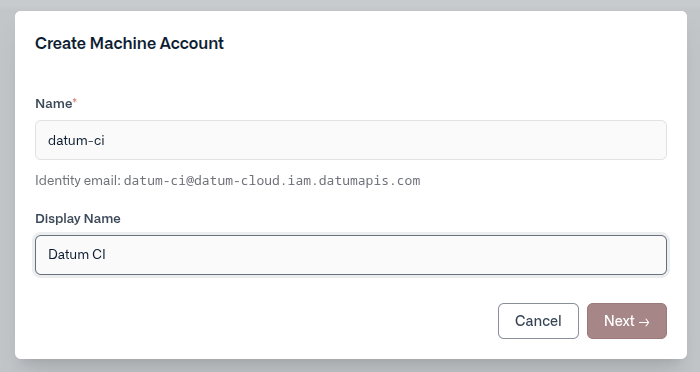
4. Enter a lowercase name (e.g. `ci-deploy`) and an optional display name.
 5. Select a key type:
* **Datum-managed** — Datum generates an RSA key pair. The private key is shown **once** at creation time. Download it as a JSON credentials file before closing the wizard.
* **User-managed** — You provide your own RSA public key in PEM format. Datum stores only the public key and never sees your private key.
5. Select a key type:
* **Datum-managed** — Datum generates an RSA key pair. The private key is shown **once** at creation time. Download it as a JSON credentials file before closing the wizard.
* **User-managed** — You provide your own RSA public key in PEM format. Datum stores only the public key and never sees your private key.
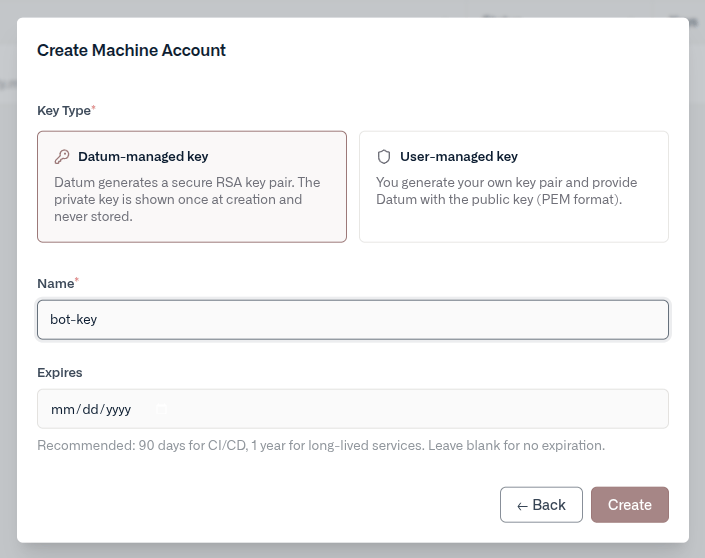 6. Select **Create**. Once the account's identity email is provisioned, your credentials are ready.
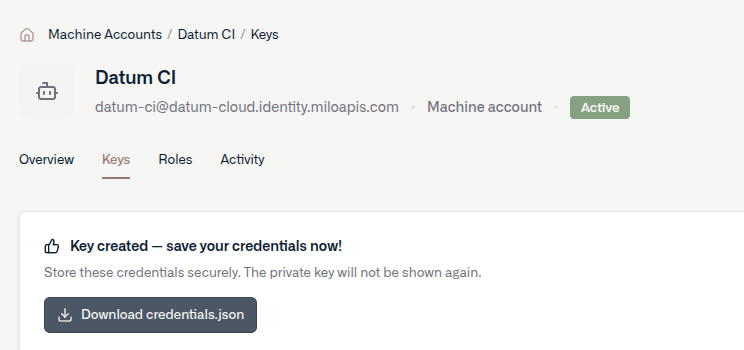 For datum-managed keys, the private key is only displayed once. Download the credentials file before closing the wizard — it cannot be recovered later.
## Manage keys
Open a service account and navigate to the **Keys** tab to add or revoke keys.
* **Add a key** — create an additional datum-managed or user-managed key at any time.
* **Revoke a key** — immediately invalidates the key. Any tokens issued with it will stop working at expiry.
To rotate keys with zero downtime: add the new key, update your workloads to use it, then revoke the old key.
## Assign roles
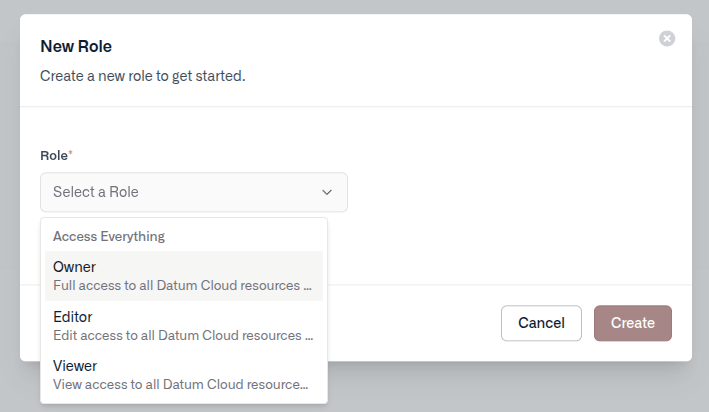
Service accounts are IAM principals like any other member. Assign roles from the **Roles** tab on the account's detail page, or from **Settings → Members** in your project or organization.
For datum-managed keys, the private key is only displayed once. Download the credentials file before closing the wizard — it cannot be recovered later.
## Manage keys
Open a service account and navigate to the **Keys** tab to add or revoke keys.
* **Add a key** — create an additional datum-managed or user-managed key at any time.
* **Revoke a key** — immediately invalidates the key. Any tokens issued with it will stop working at expiry.
To rotate keys with zero downtime: add the new key, update your workloads to use it, then revoke the old key.
## Assign roles
Service accounts are IAM principals like any other member. Assign roles from the **Roles** tab on the account's detail page, or from **Settings → Members** in your project or organization.
 ## Disable or delete an account
* **Disable** — suspends authentication without removing the account or its keys. Re-enable at any time from the **Overview** tab.
* **Delete** — permanently removes the account and revokes all associated keys. This cannot be undone.
## Using credentials
After creating a service account, you'll have a credentials file to use for authentication.
### Credentials file format
When you create a datum-managed key, Datum returns a JSON credentials file:
```json theme={null}
{
"type": "datum_service_account",
"client_id": "...",
"private_key_id": "...",
"private_key": "-----BEGIN RSA PRIVATE KEY-----\n...",
"client_email": "my-account@my-namespace.my-project.iam.datum.net",
"scope": "..."
}
```
**Treat this file like a password** — store it in a secrets manager and never commit it to source control.
### datumctl
```text theme={null}
datumctl login --credentials-file /path/to/credentials.json
```
Or set the environment variable so all subsequent commands pick it up automatically:
```text theme={null}
export DATUM_CREDENTIALS_FILE=/path/to/credentials.json
datumctl organizations list
```
### GitHub Actions
Store the contents of the credentials file as a repository or organization secret (e.g. `DATUM_CREDENTIALS`), then write it to disk in your workflow:
```yaml theme={null}
- name: Authenticate with Datum
run: echo "$DATUM_CREDENTIALS" > /tmp/datum-credentials.json
env:
DATUM_CREDENTIALS: ${{ secrets.DATUM_CREDENTIALS }}
- name: Run datumctl
run: datumctl organizations list
env:
DATUM_CREDENTIALS_FILE: /tmp/datum-credentials.json
```
### Kubernetes
Create a Kubernetes secret from the credentials file:
```text theme={null}
kubectl create secret generic datum-credentials \
--from-file=credentials.json=/path/to/credentials.json
```
Mount it into your pod and point the environment variable at it:
```yaml theme={null}
env:
- name: DATUM_CREDENTIALS_FILE
value: /var/secrets/datum/credentials.json
volumeMounts:
- name: datum-credentials
mountPath: /var/secrets/datum
readOnly: true
volumes:
- name: datum-credentials
secret:
secretName: datum-credentials
```
Alternatively, use a Datum Secret. If your cluster is already connected to Datum, you can store the credentials file as a Datum Secret and have it projected directly into your pods — no kubectl create secret step needed. See [Secrets](/platform/secrets) for setup.
### Environment variable
Any tool or SDK that respects `DATUM_CREDENTIALS_FILE` will authenticate automatically when the variable is set:
```text theme={null}
export DATUM_CREDENTIALS_FILE=/path/to/credentials.json
```
## Disable or delete an account
* **Disable** — suspends authentication without removing the account or its keys. Re-enable at any time from the **Overview** tab.
* **Delete** — permanently removes the account and revokes all associated keys. This cannot be undone.
## Using credentials
After creating a service account, you'll have a credentials file to use for authentication.
### Credentials file format
When you create a datum-managed key, Datum returns a JSON credentials file:
```json theme={null}
{
"type": "datum_service_account",
"client_id": "...",
"private_key_id": "...",
"private_key": "-----BEGIN RSA PRIVATE KEY-----\n...",
"client_email": "my-account@my-namespace.my-project.iam.datum.net",
"scope": "..."
}
```
**Treat this file like a password** — store it in a secrets manager and never commit it to source control.
### datumctl
```text theme={null}
datumctl login --credentials-file /path/to/credentials.json
```
Or set the environment variable so all subsequent commands pick it up automatically:
```text theme={null}
export DATUM_CREDENTIALS_FILE=/path/to/credentials.json
datumctl organizations list
```
### GitHub Actions
Store the contents of the credentials file as a repository or organization secret (e.g. `DATUM_CREDENTIALS`), then write it to disk in your workflow:
```yaml theme={null}
- name: Authenticate with Datum
run: echo "$DATUM_CREDENTIALS" > /tmp/datum-credentials.json
env:
DATUM_CREDENTIALS: ${{ secrets.DATUM_CREDENTIALS }}
- name: Run datumctl
run: datumctl organizations list
env:
DATUM_CREDENTIALS_FILE: /tmp/datum-credentials.json
```
### Kubernetes
Create a Kubernetes secret from the credentials file:
```text theme={null}
kubectl create secret generic datum-credentials \
--from-file=credentials.json=/path/to/credentials.json
```
Mount it into your pod and point the environment variable at it:
```yaml theme={null}
env:
- name: DATUM_CREDENTIALS_FILE
value: /var/secrets/datum/credentials.json
volumeMounts:
- name: datum-credentials
mountPath: /var/secrets/datum
readOnly: true
volumes:
- name: datum-credentials
secret:
secretName: datum-credentials
```
Alternatively, use a Datum Secret. If your cluster is already connected to Datum, you can store the credentials file as a Datum Secret and have it projected directly into your pods — no kubectl create secret step needed. See [Secrets](/platform/secrets) for setup.
### Environment variable
Any tool or SDK that respects `DATUM_CREDENTIALS_FILE` will authenticate automatically when the variable is set:
```text theme={null}
export DATUM_CREDENTIALS_FILE=/path/to/credentials.json
```